Mailing
Mails are templates with a model. Modules define them with defaults per culture; administrators can override subject and body in the UI. Sending is queued and retried by a background job, every mail lands in the mail log.
internal sealed class OrderMailTemplates : IMailTemplateContributor
{
    public void Define(MailTemplateContext context) =>
        context.Add(new MailTemplateDefinition("Orders.Shipped", "Order shipped", new OrderShippedMail("Ada", "A-1001"),
            new Dictionary<string, MailTemplateContent>
            {
                ["en"] = new("Your order {{ number }} is on its way", "Hello {{ name }}, ..."),
                ["de"] = new("Ihre Bestellung {{ number }} ist unterwegs", "Hallo {{ name }}, ..."),
            }));
}

await mails.QueueAsync(customer.Email, "Orders.Shipped", new OrderShippedMail(customer.Name, order.Number), culture: "de", ct);
Templates use Scriban. The sample model fills the preview and the Send test button of the template editor. An en default is required.
Own templates
Besides the templates of the modules, administrators create their own under Administration > Communication > Mail templates (/admin/mail/templates, permission Mail.Templates.Manage). New template asks for a name (letters, digits, ., _ and -; it cannot change later and cannot repeat a template of the system or of the organisation), a display name and a description; the editor opens right after. The copy button next to a template creates a custom template from its text in all languages, under a free name like Identity.Welcome.copy. Own templates are marked custom; only they can be deleted, which also removes their texts. Users of the system organisation can tick Global: the template is then available to every organisation.
Editing a template
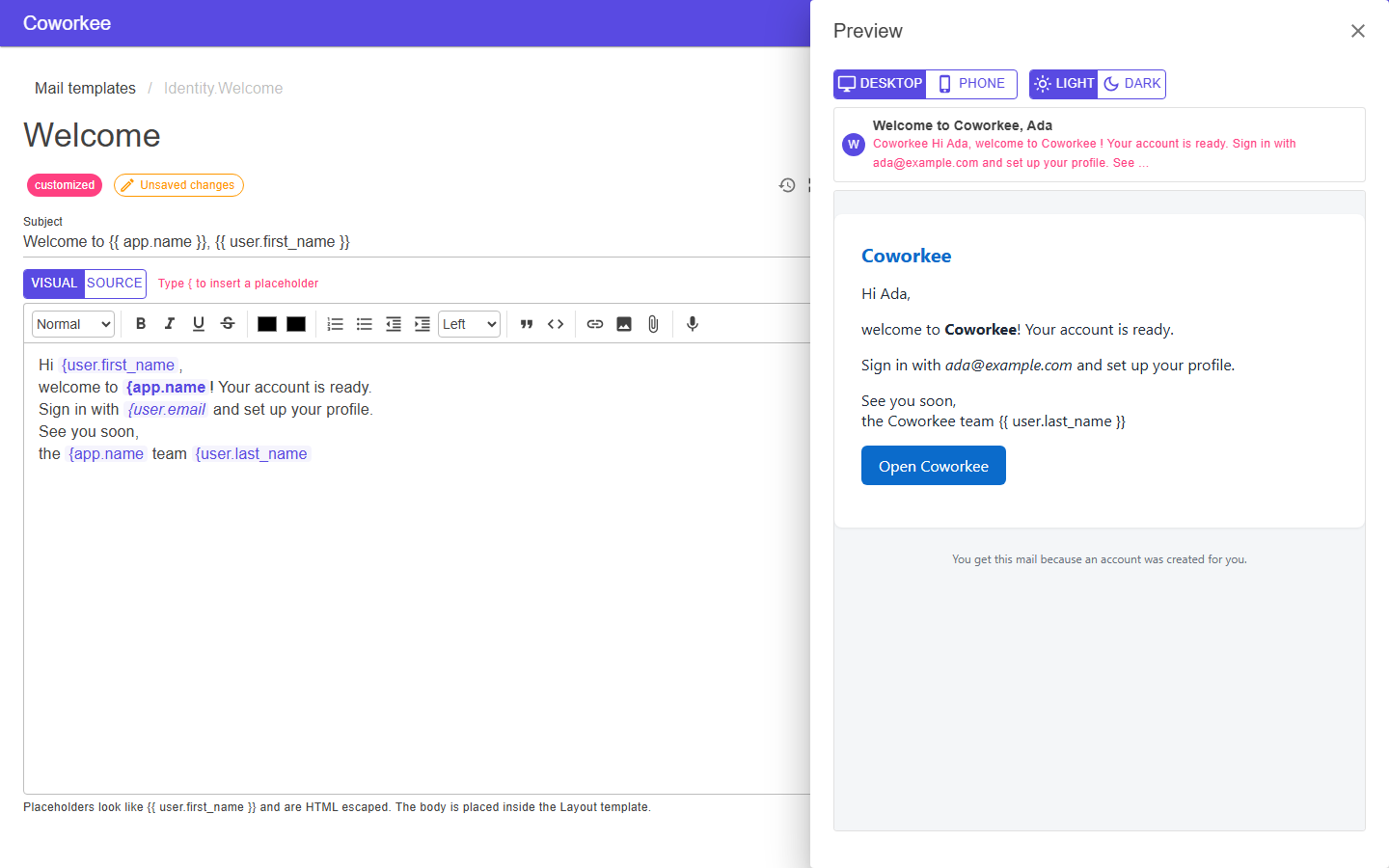
The body has two modes, switched above the editor. Visual is a rich text editor with the formatting a mail client shows (headings, bold, italic, underline, strike, colors, lists, quotes, links). Placeholders are chips showing their name: type { (or {{, the second brace is not typed), press Ctrl+Space or use the toolbar button Insert placeholder, then pick one from the list (it filters while you type, also for user.first). Source is a code editor for the HTML and Scriban text: typing {{ or pressing Ctrl+Space anywhere suggests the placeholders and the statements if, else, end and for; a pick replaces the typed braces and the ones the editor closed by itself, so nothing is doubled, and every {{ ... }} is highlighted. The stored body is always plain Scriban text, a chip is saved as {{ user.first_name }}. Both take the whole height of the window next to the placeholder list.
The visual editor is TipTap by default. Administrators switch every rich text editor of the library to Quill with the setting Rich text editor (Editors.RichTextEditor, Settings → System); placeholders, the mention list, light and dark mode work the same in both. Code (HTML source, CSS) always stays in the code editor. Your own pages get the same choice with <RichTextEditor @bind-Value="..." Modules="..." />: it renders the engine of the setting (or the one in Engine) and hands each engine the modules it understands, a MentionModule<T> fits both. Both editors only keep the markup they know, so pasted scripts or unknown tags do not survive; the server escapes placeholders when it renders.
Preview opens a sheet on the right that stays open while you type and renders the mail with the sample data a moment after each change. It shows the inbox line (subject and the first words) and switches between desktop and phone width and between a light and a dark mail client (the dark one inverts the colours roughly the way mail apps do, good enough to spot unreadable text). Send test to me mails the saved version with the sample data to your own address.
The editor marks unsaved changes and asks before you leave the page or switch the language with them. Version history (the clock button) lists every saved version of this language with who saved it and when, read from the audit trail, so also versions from before a reset. Pick one to see what changed between it and the editor, line by line; Restore into the editor puts it back as unsaved text, and Save keeps it. API: GET /api/v1/mail/templates/{name}/{culture}/history.
The visual editor rewrites markup, so it is only offered for bodies it keeps unchanged. A body with Scriban statements (if, for, while, case, capture, with, func, tablerow), with tags other than text formatting, paragraphs, headings, lists, quotes and links (a <table, <div>, <img>, comments), or with styles other than color, background-color and text-align (the styled button of the shipped templates) opens in Source and the Visual button stays disabled; switching from Visual to Source is always possible. Placeholders the template does not know stay plain text in the visual editor.
Next to the editor the Placeholders list shows every variable of the template with its type and a sample value. A click inserts it at the cursor: as a chip in Visual, as {{ name }} in Source. A list (for example the notifications of a digest) inserts a loop skeleton {{ for item in list }} ... {{ end }} in Source; its members (listed as list[].title) insert as {{ item.title }}. In Visual both are added at the end of the source, because loops cannot be built visually. The button next to the subject appends a placeholder to the subject. Own templates use the recipient model (user.first_name, user.display_name, app.name and the other values of the list); a Reset to default button exists for the templates of modules only, own templates have no default.
Languages of a template
A template has one variant per language; the Languages column lists them with their flags (highlighted: changed here). In the editor the same languages sit as chips next to the title: a click opens that variant, the translate button next to them adds one. A language switched on later on the Languages page gets no variant by itself. Add language (the translate button of a template) asks for the language, from which existing variant to start, and whether to machine translate: with a translation service set up under the translation settings, only the texts between the HTML tags are translated, and tags, styles and {{ ... }} placeholders stay as they are; without one the variant starts as a copy. The editor of the new variant opens right after, so check the text there. An added language can be removed with the cross on its chip; the shipped languages of a module template are reset in the editor instead, and the last language of an own template stays. The button is off when every active language already has a variant.
A mail in a language without a variant falls back step by step: the language (de-AT), its parent (de), the default language (of the organisation, else of the system, else the default of the Languages page) and its parent, English, and for own templates the oldest variant. API: POST /api/v1/mail/templates/{name}/{culture} with { "from": "en", "translate": true } adds a variant, DELETE on the same path removes it.
Campaigns
Administration > Communication > Mail campaigns (/admin/mail/campaigns, permission Mail.Campaigns.Send) sends one of your own templates to many users of your organisation. A campaign only ever reaches users of the organisation of the person who sends it, also for the system organisation. Built-in templates cannot be sent, they need their own model; copy one to get an own template first.
New campaign opens a wizard with three steps:
- Template: choose an own template and name the campaign.
- Recipients: choose who gets it, see below. The box under the choice always shows how many users that is, how many were excluded, and the first ones.
- Send: summary, Send test to me (sends the template to your own address, its footer links your real unsubscribe page), Send now or Schedule with a date and time. Both ask once more with the number of recipients. The time is the wall clock time of your browser; a time more than a minute in the past is refused.
Recipients come from one of these sources:
- Smart list: a preset (all active users; not signed in for more than N days, default 30; never signed in; signed up in the last N days; e-mail not confirmed; members of roles; deactivated users), a saved list, or a custom query built with the same query builder as the advanced filter of the user table. Save as list stores a query under a name for later campaigns; a saved list is copied into a campaign, so editing or deleting it later does not change a campaign that is already scheduled.
- Manual selection: the user table with checkboxes. Search, facets and the advanced filter narrow it first. Select all matching switches from the ticked rows to every user matching the current filter, also those on other pages. The selection then follows the filter: searching or filtering further changes who is meant, until you tick or untick a row.
A custom query and a manual selection also need the right to view users (Identity.Users.View), because they let you pick people by name. With only Mail.Campaigns.Send the presets work, and the preview shows the counts without the names.
Users without an e-mail address, locked users and users who turned off Receive newsletters are never mailed; deactivated users only with the preset Deactivated users. They are counted as excluded. Recipients are resolved when the campaign starts, not when you choose them, so a scheduled campaign reaches the users of that moment. Each mail is rendered in the recipient's language: the user's, else the organisation's, else the default.
Every campaign mail ends with an unsubscribe link. It opens a confirmation page without sign-in; confirming turns off the setting Receive newsletters (Mail.Newsletters, on by default) for that user. Users can switch the setting back on in their own settings. The link carries a signed token and does not expire; the token is protected with the shared Data Protection key ring in the database, so links keep working across redeploys and hosts. The confirmation is a plain form post; the web app (BFF) lets it through without the usual \X-CSRF\ header because the path is listed in \Coworkee:Bff:CsrfExemptPaths\ (default \/api/v1/mail/unsubscribe), the token alone authorizes it.
The list shows each campaign with its status, Sent/Total, and a red failed count when some mails could not be delivered, and refreshes every five seconds while one is sending. A campaign that is due but still Scheduled ten minutes later was not picked up: the list shows a warning and stops refreshing it, check that the background worker is running. A draft (a wizard that was left before sending) has an Edit button that reopens the wizard with its template, name and recipients; recipients the wizard cannot show again (ticked users, a filter of the user table) stay as saved until you change the selection. The log button opens the mail log filtered to that campaign (/admin/mail/log?campaign=<id>). Cancel is offered for scheduled and sending campaigns: no further recipients are queued and mails still waiting in the queue are removed; mails already sent stay sent. Other campaigns can be deleted.
Warning
Links in campaign mails need an absolute address. Set Coworkee:Notifications:PublicAppUrl (for example https://app.example.com); without it a campaign cannot be started or scheduled. The unsubscribe token is protected with ASP.NET Core Data Protection: when the campaign job runs in another host than the web app, both must share the same Data Protection key ring, otherwise links do not open.
Providers
Mails leave through one provider. Mail.Provider picks it, the other settings belong to the provider and sit in the same group. Every provider needs a sender address (Mail.From); the optional whitelist (Mail.Whitelist, one address or @domain per line, empty allows everyone) applies to all of them.
| Provider | Value | Settings | Notes |
|---|---|---|---|
| SMTP | smtp (default) |
Mail.Smtp.Host (required), Mail.Smtp.Port (25), Mail.Smtp.UseSsl, Mail.Smtp.UserName, Mail.Smtp.Password |
the existing keys, nothing to migrate; without SSL the connection upgrades with STARTTLS when the server offers it |
| SendGrid | sendGrid |
Mail.ApiKey (required) |
an API key with the Mail Send permission |
| Mailgun | mailgun |
Mail.ApiKey and Mail.Mailgun.Domain (both required), Mail.Mailgun.Region (us or eu, default us) |
the region must match the one of your Mailgun account: EU accounts use api.eu.mailgun.net |
| Mailchimp Transactional | mailchimp |
Mail.ApiKey (required) |
the key of Mailchimp Transactional (formerly Mandrill, mandrillapp.com), not of Mailchimp marketing: it is a paid add-on of a Mailchimp account that you create under Transactional and whose keys are not the marketing API keys. A marketing key is rejected |
The HTTP providers talk to their REST API directly with IHttpClientFactory; no extra package. Mail.Smtp.Password and Mail.ApiKey are secrets: encrypted at rest and never sent to the client. A provider that rejects a mail makes the job fail and retry like any other error; the message (with the key masked) is in the mail log.
The mail settings page
Administration > System > Mail settings (/admin/mail-settings, permission Settings.Manage) replaces the Mail tab of the settings page. You choose the provider, fill its fields, set sender and whitelist and save; changes apply to the next mail, without a restart. Send test mail sends a mail to your own address with the values currently in the form, saved or not, and shows the result: an empty secret field keeps the stored key, so you can test without typing it again. A failure shows the provider's answer; for organisations (see below) it shows only a short message, because an organisation chooses its own host and must not read the network errors of the server.
Own server per organisation
Organisations send through the system's server by default. The setting Mail.UseOwnServer (scope organisation, off by default) lets an organisation use its own: on the mail settings page an organisation administrator sees the switch, and with it on the same form for provider and credentials.
- With the switch on, every value comes from the organisation: provider, credentials, sender and whitelist. With it off, every value comes from the system. Nothing is mixed, so an organisation never sends with the system's password and a sender of its own.
- Switching off keeps the organisation's values; switching on again uses them without typing them in.
- The values the provider needs (SMTP host, API key, Mailgun domain) must be stored in the organisation itself. A deployment default such as
Coworkee:Settings:Defaults:Mail.Smtp.Hostdoes not count, otherwise an organisation would send through the system's server while believing it uses its own; the mail fails with ... is not configured. instead. - The system organisation always uses the system settings.
Sending and own transports
A background job takes the queued mail, resolves the connection (provider and values) for the mail's organisation and hands it to the IMailTransport whose Provider matches.
Breaking change
ISmtpTransport is gone, replaced by IMailTransport, one implementation per provider. There is no obsolete shim. The settings keys Mail.Smtp.*, Mail.From and Mail.Whitelist are unchanged, so stored values keep working. Code that implemented or replaced ISmtpTransport implements IMailTransport instead.
public interface IMailTransport
{
    string Provider { get; }

    Task SendAsync(MailEnvelope mail, MailConnection connection, CancellationToken cancellationToken);
}
MailEnvelope holds From, To, Subject, HtmlBody and the attached Files (MailAttachment: file name, content type, bytes; queued with IMailSender.QueueWithAttachmentsAsync, at most 10 MB per mail, kept in cw.OutgoingMailAttachments with the mail; the four built-in providers send them); MailConnection the provider name and the resolved values by setting name (connection[MailSettings.ApiKey], null when empty). Throw to fail the mail; the job retries it. A transport with a name of its own is a new provider. This one writes mails to the log, which is handy in tests:
using Coworkee.Mailing;
using Microsoft.Extensions.DependencyInjection;
using Microsoft.Extensions.DependencyInjection.Extensions;
using Microsoft.Extensions.Logging;

public sealed class LogMailTransport(ILogger<LogMailTransport> logger) : IMailTransport
{
    public string Provider => "log";

    public Task SendAsync(MailEnvelope mail, MailConnection connection, CancellationToken cancellationToken)
    {
        logger.LogInformation("Mail from {From} to {To}: {Subject}", mail.From, mail.To, mail.Subject);
        return Task.CompletedTask;
    }
}

// in ConfigureServices
services.TryAddEnumerable(ServiceDescriptor.Singleton<IMailTransport, LogMailTransport>());
The settings page offers the four built-in providers only. Select your own by its name as the default: Coworkee:Settings:Defaults:Mail.Provider = log. Its credentials, if it needs any, come from your own settings or configuration; the system checks no required values for a provider it does not know. The same works for a service with an HTTP API such as Amazon SES: implement SendAsync with an HttpClient from IHttpClientFactory and sign the request the way the service demands.
Locally the app host points the SMTP settings to Mailpit.